This will work both for basic (free) Zoom accounts AND paid accounts.
To get started, go to your Teacher Tools, and then "Your Courses".
In the publisher under the organizer tab, find the Zoom Meeting tab, and click it:
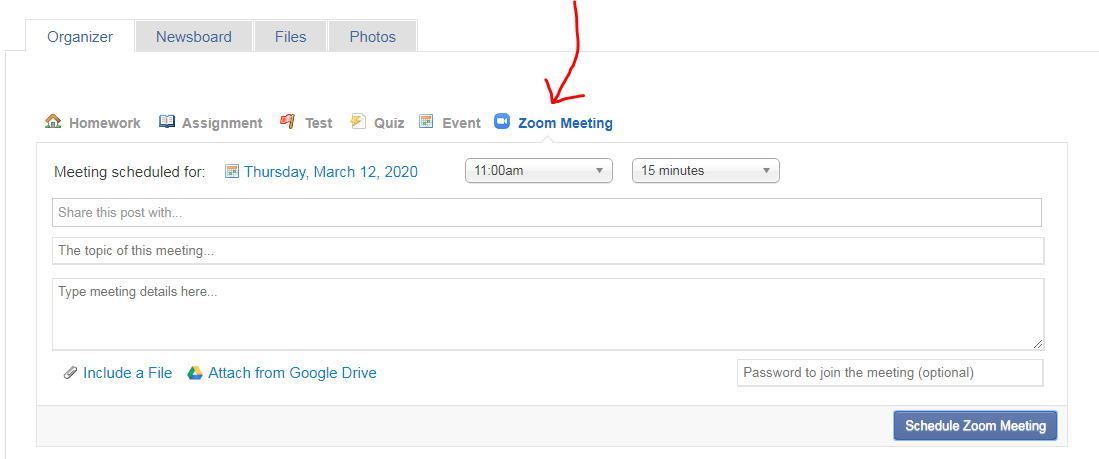
Enter the details of your meeting, and select which courses you want to schedule it with. Please note that if you are using the Zoom free account, you will not be able to exceed 40 minutes regardless of what you set as your duration.
You may also (optionally) set a password for your meeting.
Click "Schedule Zoom Meeting" to schedule your meeting.
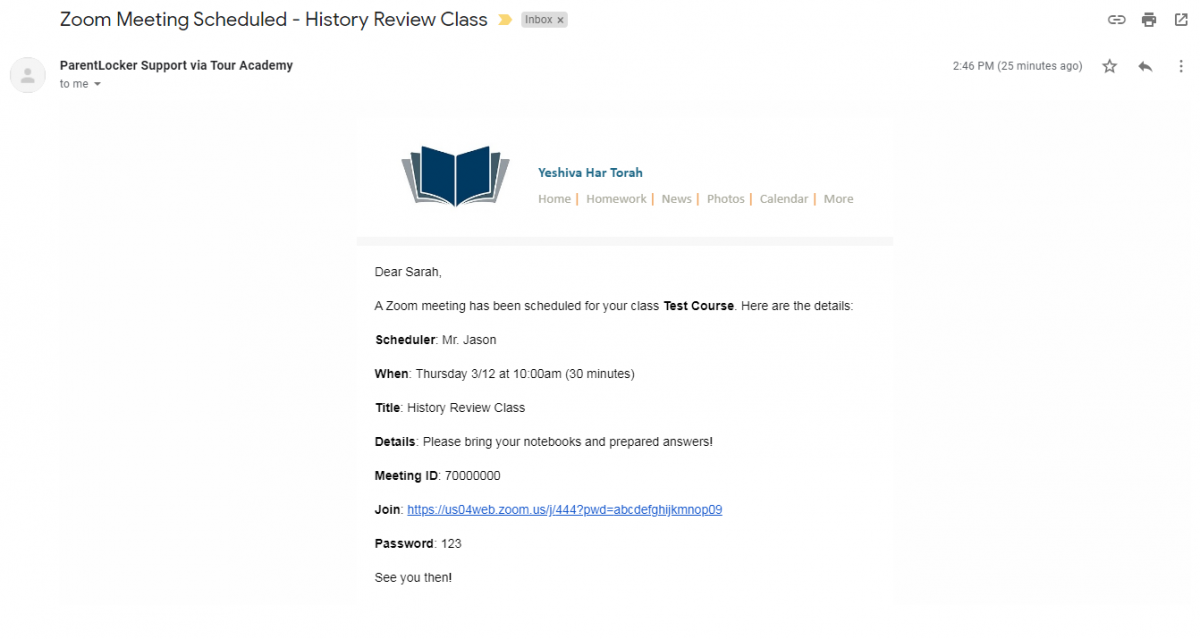
Students will receive an email with the meeting details:
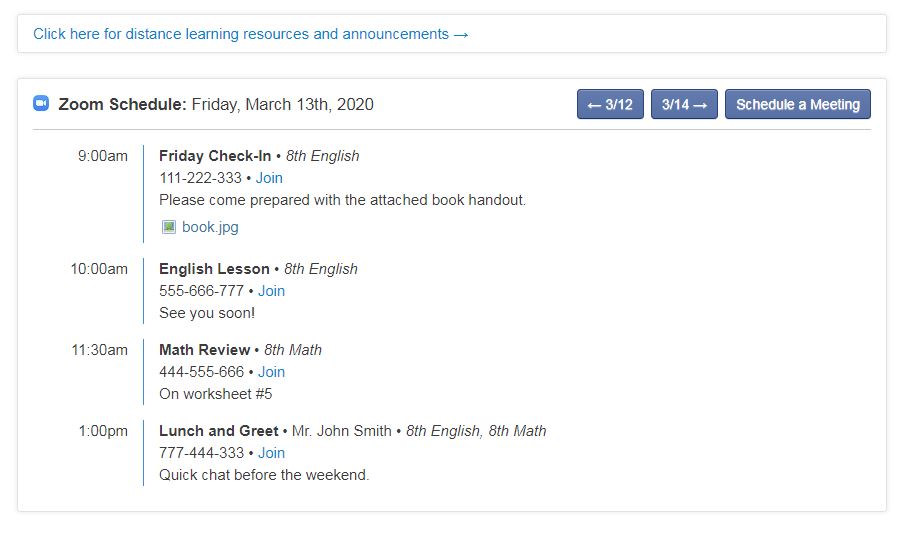
The meeting will now appear on your homepage, as well as your students' homepages:
Zoom Lesson Recordings
Recordings that have been uploaded to the Zoom cloud will automatically email to all your students, after the recording is done processing. If you do not want recordings published to your students, you can record locally, or turn off recording in the Zoom app.Uninstalling the ParentLocker Add-on
- Login to your Zoom Account and navigate to the Zoom App Marketplace.
- Click Manage > Installed Apps or search for the ParentLocker app.
- Click the ParentLocker app.
- Click Uninstall.